Quick start guide
This guide takes you from installing Beyond Budget to running your budget month after month. The steps follow zero-based budgeting, where you budget the money you actually have; they work the same way for classic budgeting, where you budget your expected income instead.
Step 1: Get the app and sign in
Beyond Budget runs on Android, iOS and the web, and your budget syncs between them.
- Android: install it from Google Play.
- iPhone and iPad: install it from the App Store (coming this December).
- Web: open app.beyondbudgetapp.com in your browser.
Sign in with Google, Apple, email or (on Android) Facebook, or tap Try without an account to look around first. See Signing in for the options on each platform. A few features depend on the device; Platform availability lists them.
Step 2: Choose your budgeting style
The first time you open the app, a short guide sets up your first budget. Not every new user sees the same start:
- Some new users choose how to start first. Welcome to Beyond Budget! asks How would you like to get started?: Guide me sets up your first budget together with you, step by step; I'll explore on my own takes you straight to the app. Then Personalizing your budgeting style asks for a style, with one already picked for you: Plan from my monthly income after Guide me, Plan with the money I have after I'll explore on my own. If you chose to explore on your own, tap Close tutorial once you've picked.
- Other new users choose a style straight away, on Welcome to Beyond Budget!, with nothing picked yet.
The styles to choose from:
- Plan with the money I have (zero-based budgeting): start from your account balances and give every bit of money a job until nothing's left. The most control. See Zero-Based Budgeting.
- Plan from my monthly income (classic budgeting): set a limit for each category from the income you expect, and log spending from your accounts. Good if you're paid regularly. See Classic Budgeting.
- Just track my spending (simple tracker): log income and expenses by category, with no accounts or limits to manage.
Not sure? The app suggests classic budgeting. The rest of the guide explains your style, groups and categories, accounts (not in a simple tracker), targets, moving money and starting over, with buttons to set each one up as you go. You can replay it anytime from More › Support › Restart onboarding.
You can't switch an existing budget to another style later, but you can create a new budget with a different style and copy your categories into it. See Multiple budgets.
Step 3: Gather your numbers
- Recent statements: your latest bank, credit card and loan statements give you a clear snapshot of where you stand today.
- Recurring payments: list your fixed expenses (rent or mortgage, utilities, insurance, subscriptions) with their due dates and amounts. You'll use them for targets, reminders and future transactions.
Step 4: Follow the Getting Started checklist
The Budget tab shows a Getting Started card that tracks your setup:
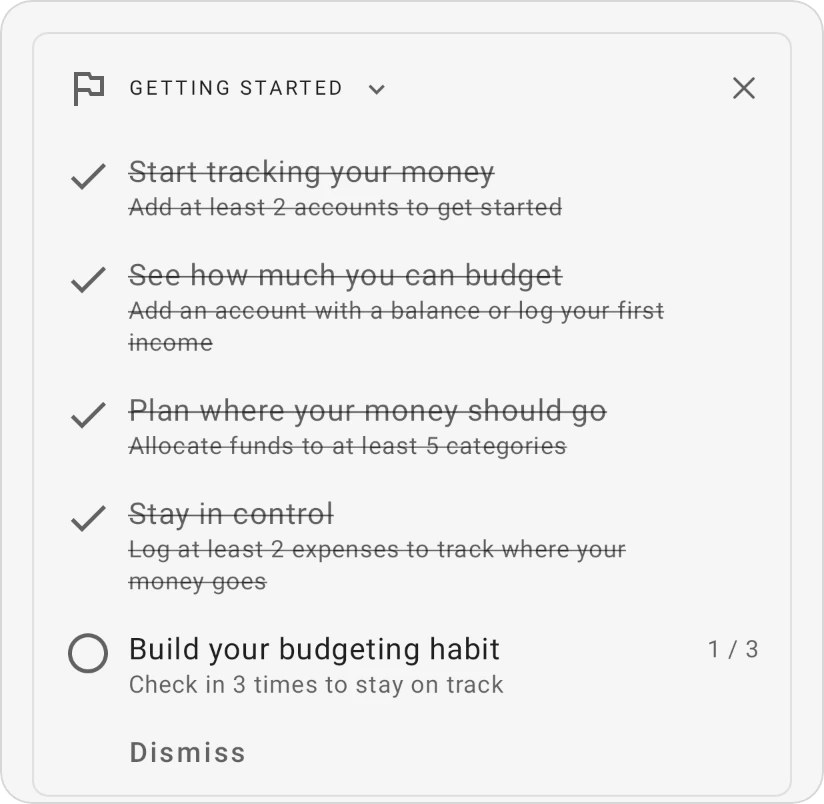
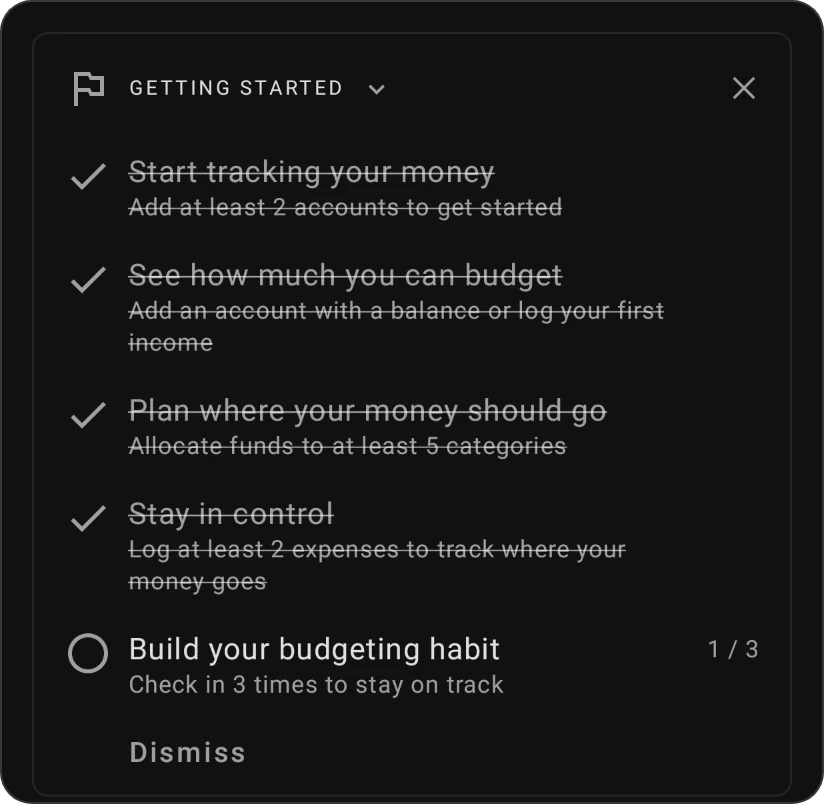
- Start tracking your money: add at least 2 accounts (checking, savings, credit cards, loans). See Account types.
- See how much you can budget: in a zero-based budget, add an account with a balance or log your first income; in a classic budget or a simple tracker, add your first income.
- Plan where your money should go: allocate money to at least 5 categories.
- Stay in control: log at least 2 expenses to track where your money goes.
- Build your budgeting habit: check in 3 times to stay on track.
Step 5: Set up categories and targets
- Groups and categories: shape your categories around your life: essentials like rent and groceries, savings goals like a holiday or an emergency fund, and the fun stuff too.
- Targets: give categories a goal, such as a monthly amount, a bill due on a date, or a savings balance to reach.
Treat savings like a bill: fund your savings categories early instead of saving whatever is left at the end of the month.
Step 6: Bring in your transactions
- Enter them yourself: tap Add in the bottom bar to log an expense, income or transfer.
- Import a bank file: More › Profile › Import data reads CSV, OFX and QIF files.
- Scan a receipt: Receipt scan turns a photo into a transaction (Android and iOS).
- Let your notifications do it: Bank notification import turns your bank's notifications into transactions (Android).
- Just ask: BudgetChat in the side menu can log an expense from a plain sentence.
Every so often, compare the balances in the app with your real accounts to catch any transaction you missed.
Step 7: Give every dollar a job
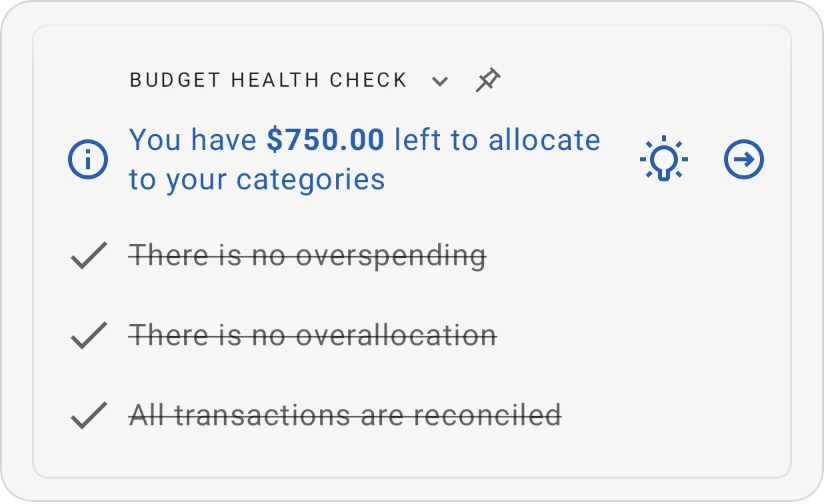
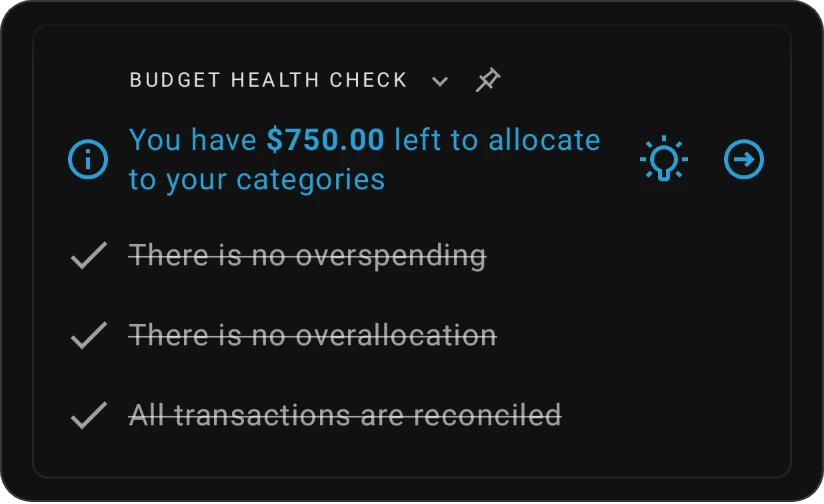
Assign the money you have to your categories until Ready to allocate reaches zero. The Budget health check card on the Budget tab tells you when there's money left to allocate, when you've overspent a category or when you've allocated more than you have.
Life changes, and so can your budget: when an unexpected expense comes up, move money between categories without guilt.
Step 8: Track as you go
- Log expenses as they happen, or check in once a day. Small, regular updates keep the budget accurate.
- Use future and recurring transactions for bills you know are coming, and Reminders (side menu) so nothing slips.
Step 9: Review and refine
At the end of each month, open Insights from the side menu:
- What's the big picture of my budget? and Where is my money allocated? show your overall position.
- Where have I spent the most over time? reveals your spending trends.
- Am I living below my means? tells you whether your habits are sustainable.
- Sentiment: rate transactions to spot the spending you regret, and do less of it.
The badges are a fun way to explore the app: each one highlights a budgeting habit or a feature worth trying.
Then repeat steps 7 to 9 every month: allocate new income as it arrives, keep tracking, and review. The more you use these tools, the more natural budgeting becomes.
Celebrate your wins, big or small: sticking to your budget, reaching a savings milestone, or just making a better spending choice. Each one is a step towards financial independence.
Keep learning
- More › Knowledge hub: articles with financial tips.
- More › Support: Ask Beyond answers questions about app features, and there are links to the FAQ and the Reddit community.
- r/beyondbudget: share tips and ask other users.