Smart helpers on the transaction form
The transaction form has a few small buttons that save you typing. They learn from the transactions you've already entered, so the more you use the app, the better they get. None of them change anything until you tap them.
Smart suggestions
A lightbulb button, Smart suggestions, appears at the end of the Category, Payee and Tags fields while they're empty and the app has something to suggest. The suggestions come from your past transactions in the same account: the ones with a similar amount, on a similar day of the month or the same day of the week, count most.
Category
-
Enter the amount and check the account. The lightbulb shows in the empty Category field once there's an amount.


-
Tap the lightbulb. Smart suggestions opens with up to two groups:
- AI's Best Guess: up to three categories that match this expense best: past expenses from the same account with a similar amount and date.
- Frequent Flyer Categories: up to three of the categories you use most (each with at least three transactions) that aren't in the first group.
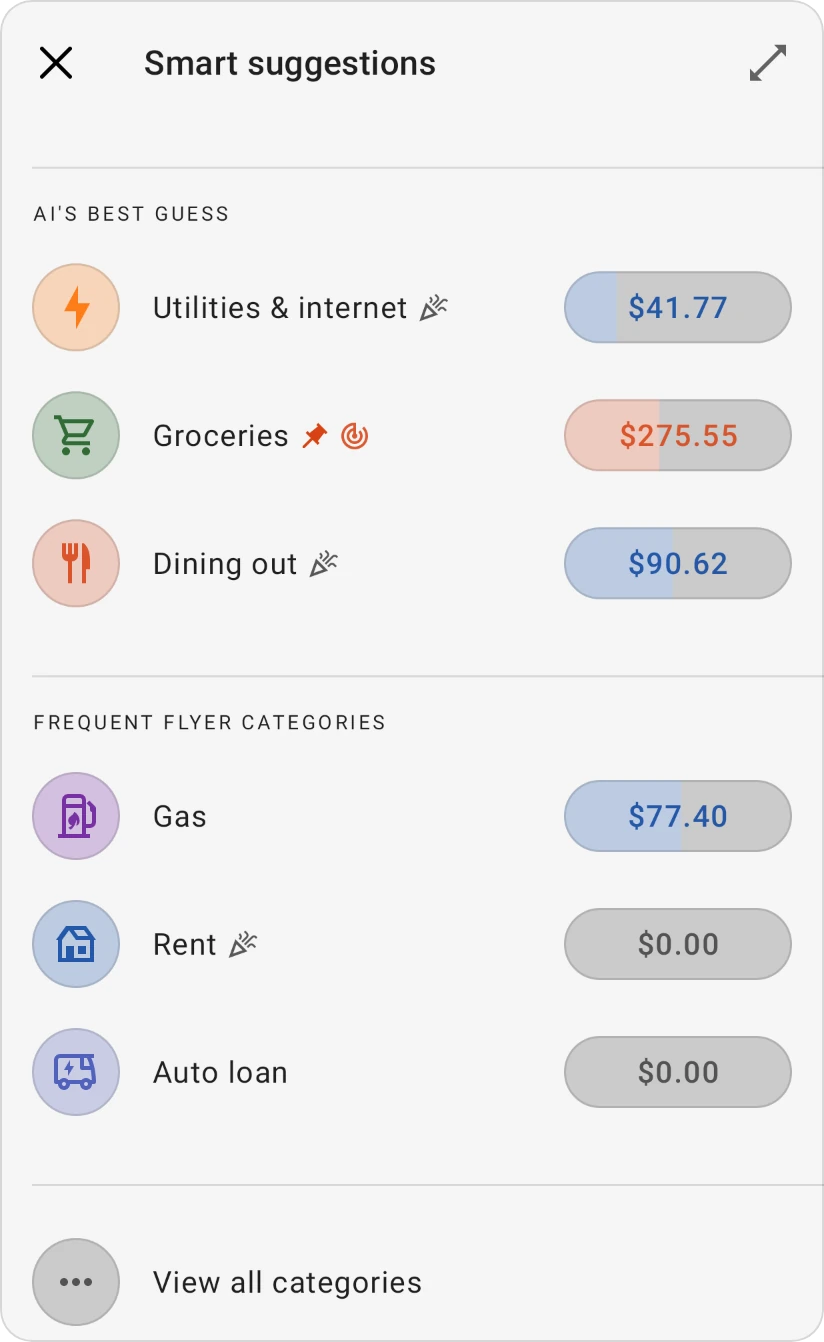
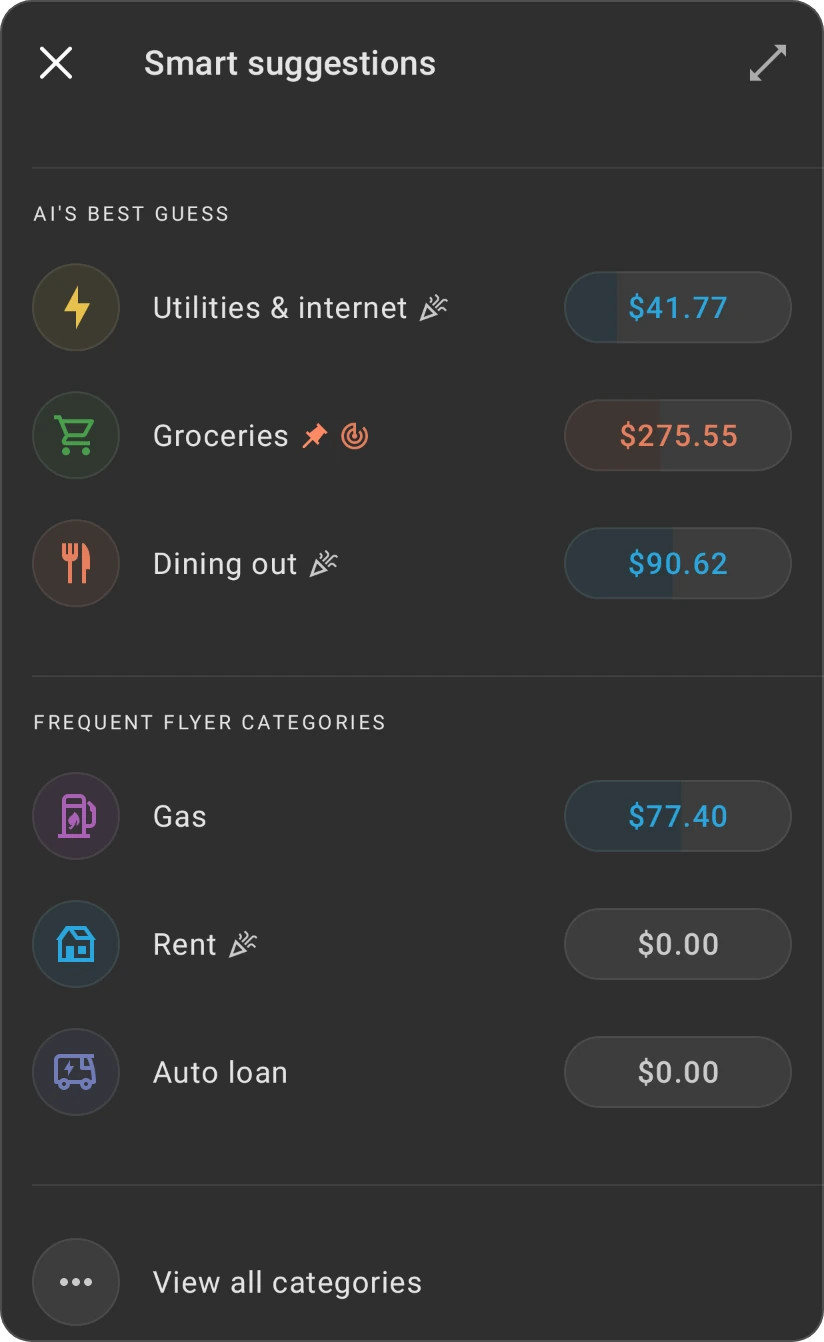
-
Tap a category to use it. If none fits, tap View all categories to choose from the full list.


Payee and tags
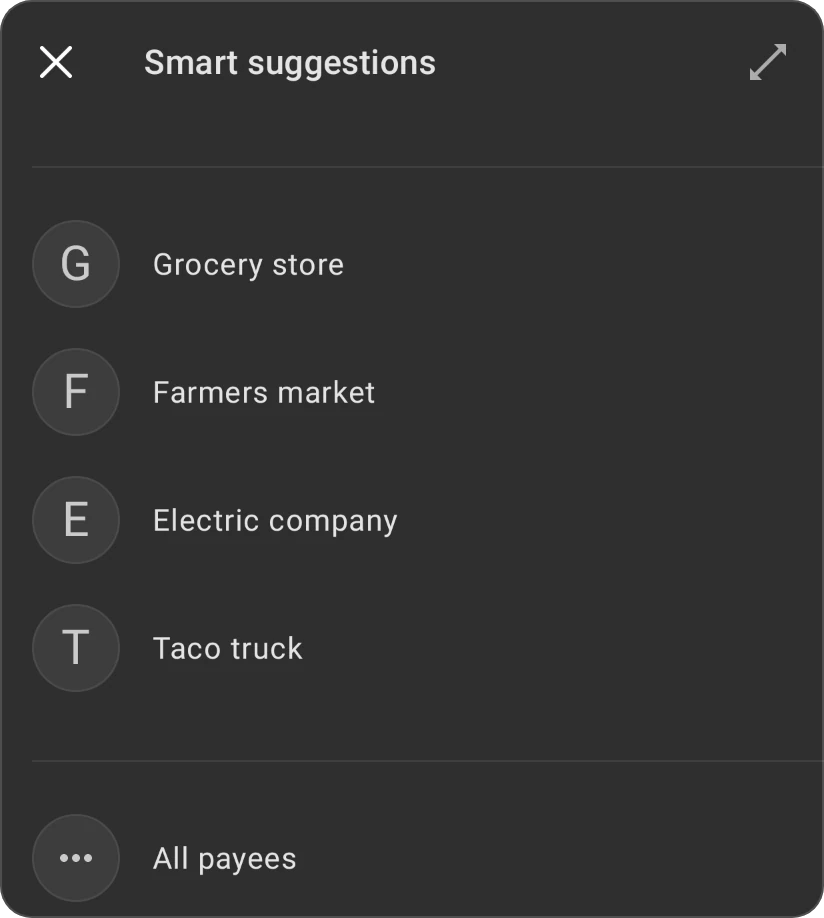
The Payee and Tags fields work the same way. Their suggestions also look at the category you've chosen, so pick the category first.
- Payee: up to five payees. Tap one, or All payees for the full list.
- Tags: up to five sets of tags you've used together before. Tap one to add the whole set, or View all tags for the full list.
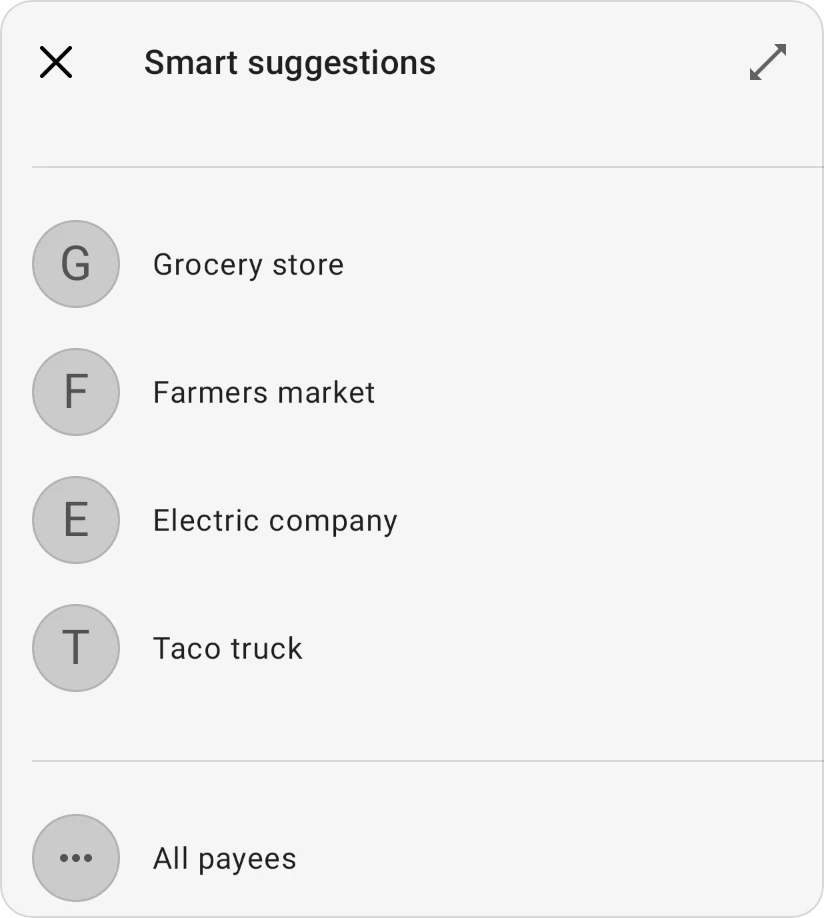
No lightbulb? There's nothing to suggest yet: the field already has a value, the expense has no amount, or the account has no similar transactions. Pick from the list as usual; the next time the app will know more.
Split suggestions
In a split expense, each part has its own lightbulb once the expense has an amount and at least two parts. Tap it to fill that part with what's left to assign, an equal share, or to share the total evenly across every part.
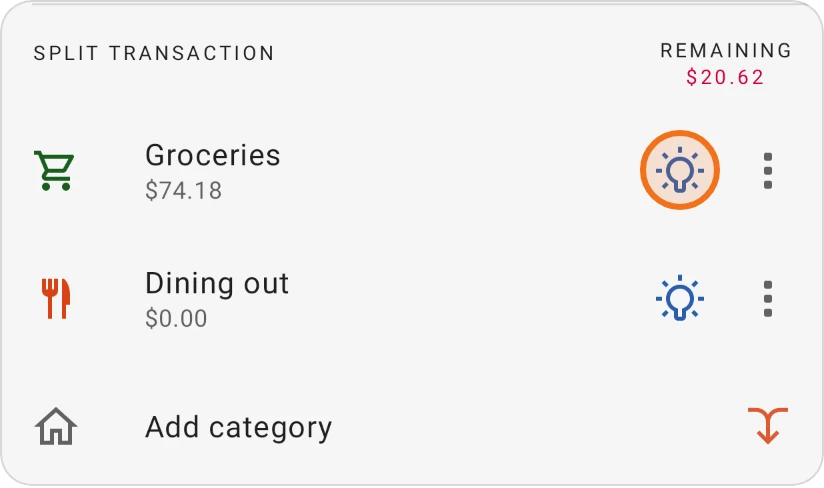
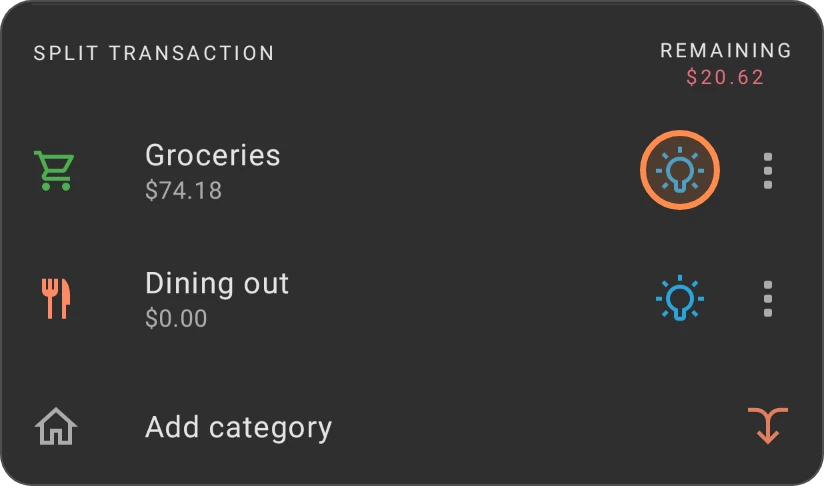
What each choice does: Split suggestions.
Dates
Use the last selected date
Entering several transactions from the same day, like a stack of receipts? After you save a transaction, the next new one shows a bookmark button in its Date row, Use last selected date, when its date differs. Tap it to use the date of the transaction you just saved. A message confirms Last selected date applied!; tap Undo to go back to the date you had.


The app remembers this date until you close it.
Quick dates
Tap the date to open the calendar. Above it is a list of quick choices, each with the date it stands for:
- Recent selection: the date of the transaction you saved last (while the app is open).
- Two days ago, Yesterday, Today, Tomorrow, Next week and In one month.
- Show past months: scrolls up to the months before this one.
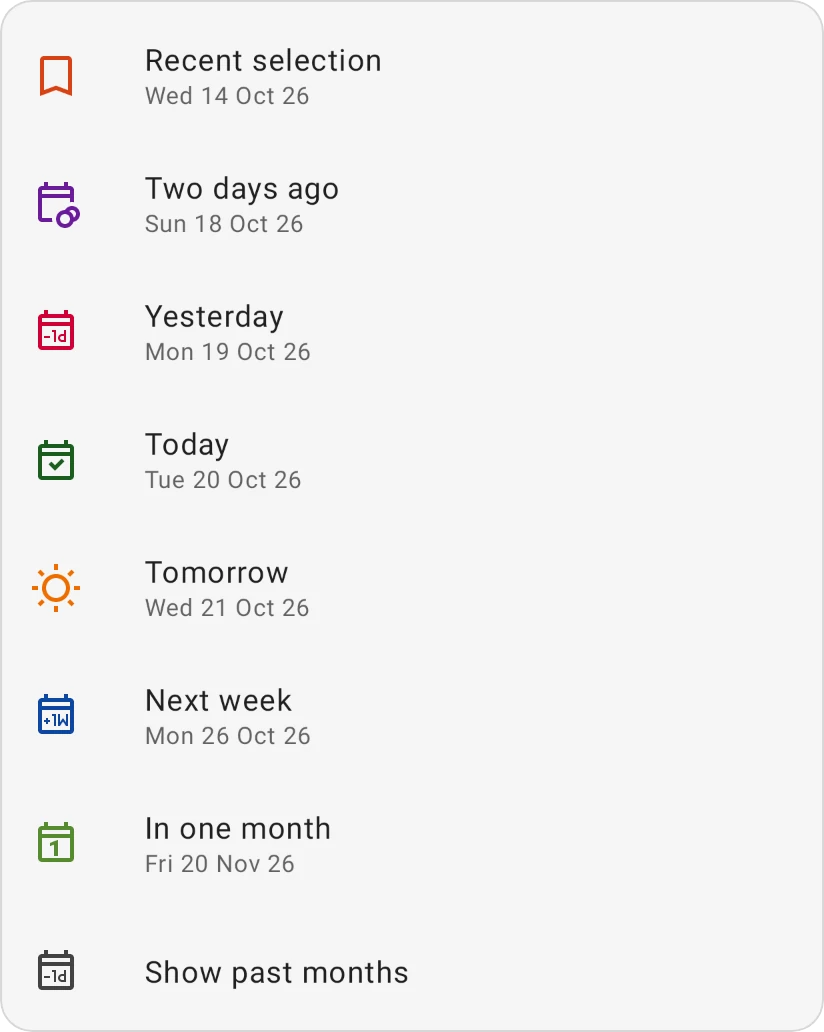
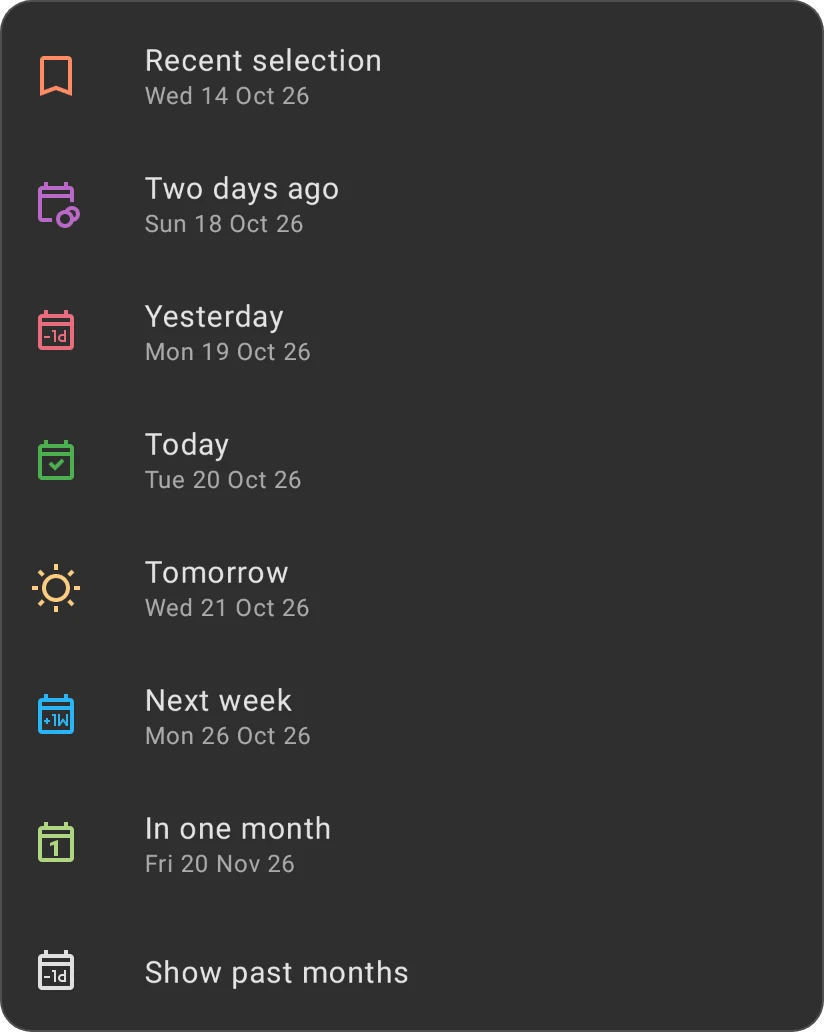
A transfer offers Today, Yesterday, Two days ago and Show past months. Other date pickers in the app have their own quick choices, such as In three months, In one year or In five years for a target date.
The − and + buttons in the Date row move the date one day at a time without opening the calendar.
Accounts
When you have more than one account, the From row (and the To row of a transfer) has two arrows, Previous and Next. Tap them to step through your accounts without opening the list.


A new transaction starts on your default account (the star on an account's screen, see Basic details). It also starts Cleared, unless the last transaction you saved while the app was open wasn't cleared.
More shortcuts
- Calculator: the amount keypad does sums. See Use the keypad as a calculator.
- Templates: the template button at the top of the form fills it in from a saved template. See Templates.
- Quick expense: a fast expense without a category. See Quick expense.
- Receipt scan (Android and iOS) and BudgetChat: buttons at the top of the form when they're available. See Receipt scan.
- Reallocate money: the From field has its own Smart suggestions. See Money reallocation.