Voice entry
Say what you spent, and Beyond Budget adds it for you. Tap the mic, say something like "Coffee 4.50 yesterday on Visa", and the transaction is added straight away. Several at once works too. Voice entry uses AI to read what you said and match it to your accounts and categories.
Open voice entry
-
Tap Add in the bottom bar. On the New expense row, tap the mic (Voice entry), next to the lightning button. Until you've opened voice entry once, the mic has a small dot.
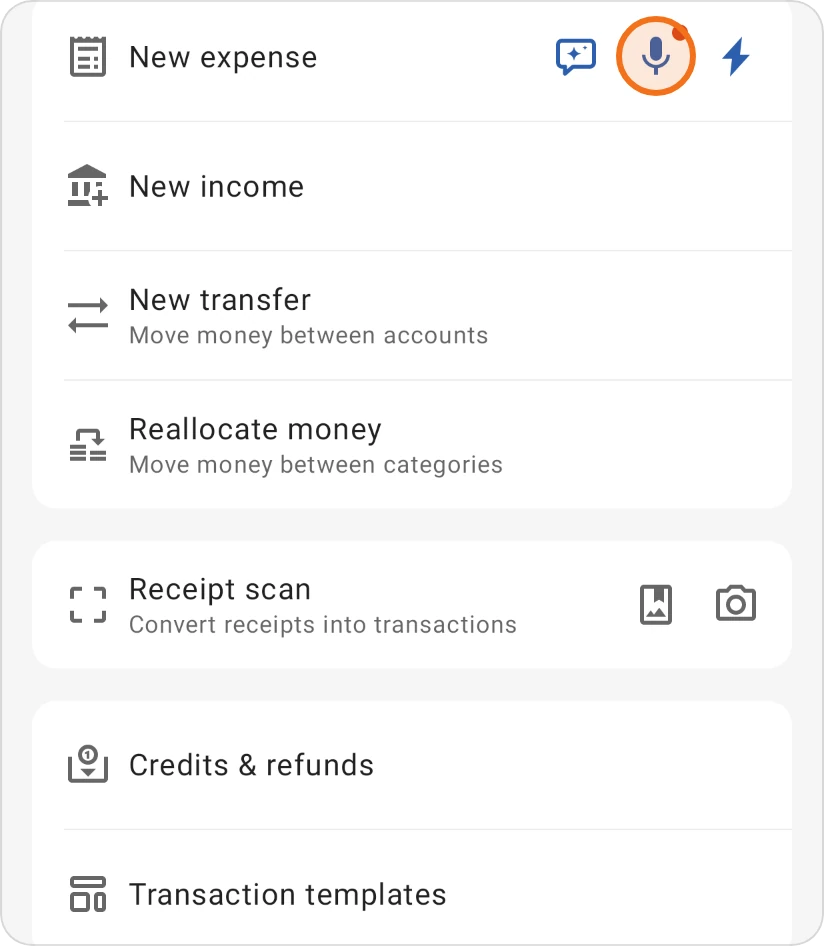
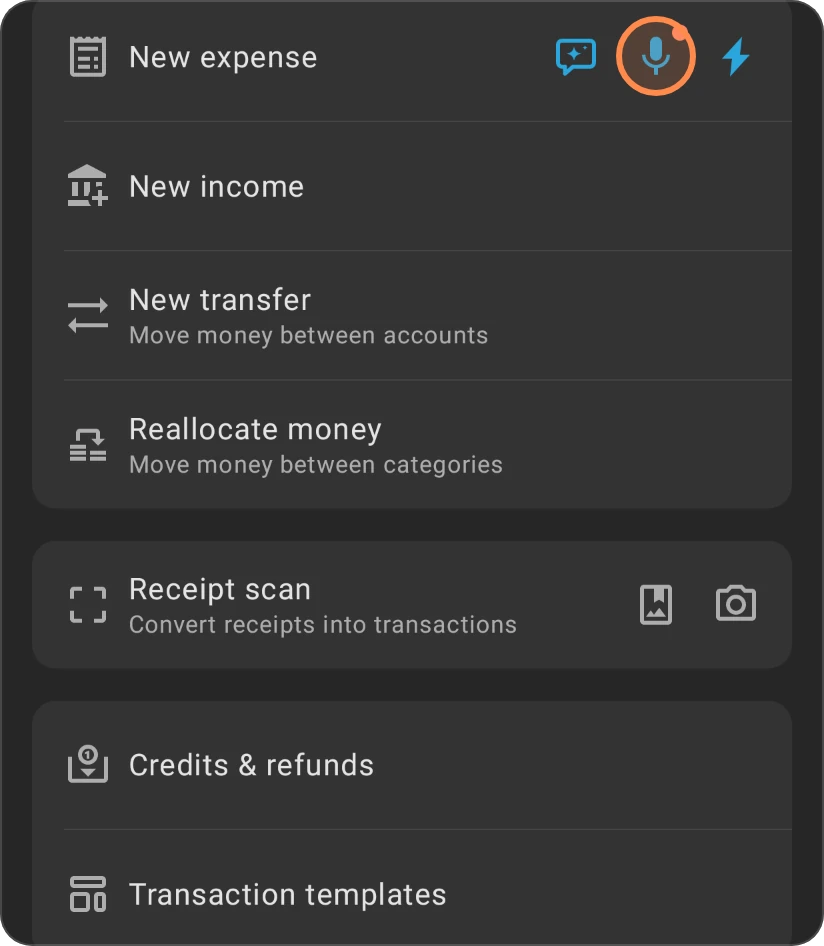
-
Or, on the form of a new transaction, tap the mic (Voice entry) in the top bar. Voice entry takes the form's place. If you've already changed something in the form, the app first asks Discard changes?: tap Discard to go on. The mic isn't shown when you edit or clone a transaction.
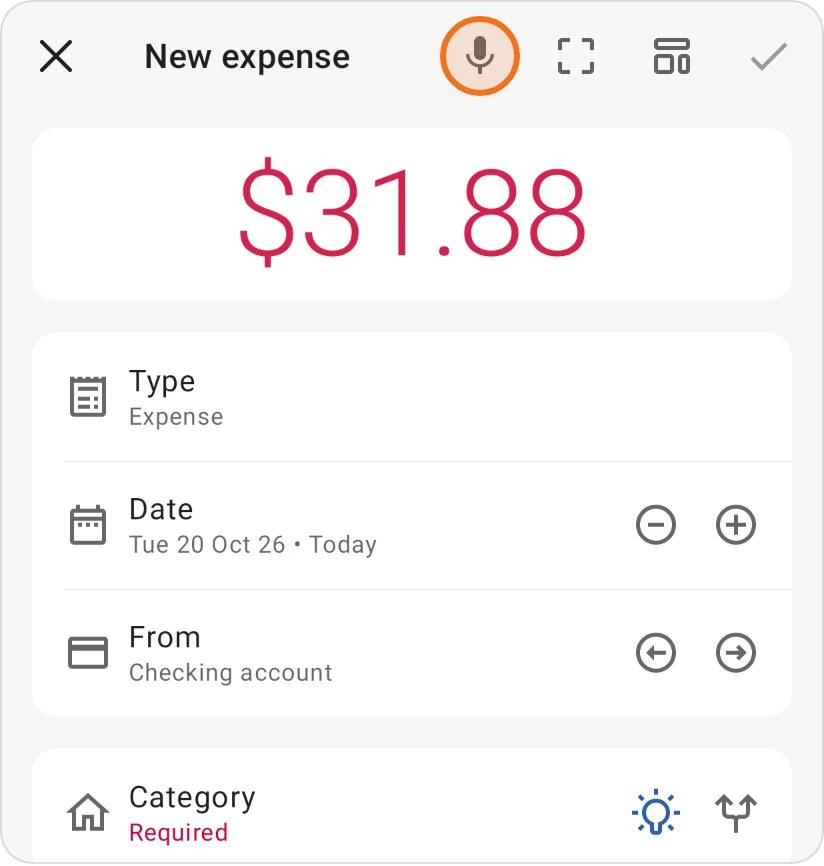
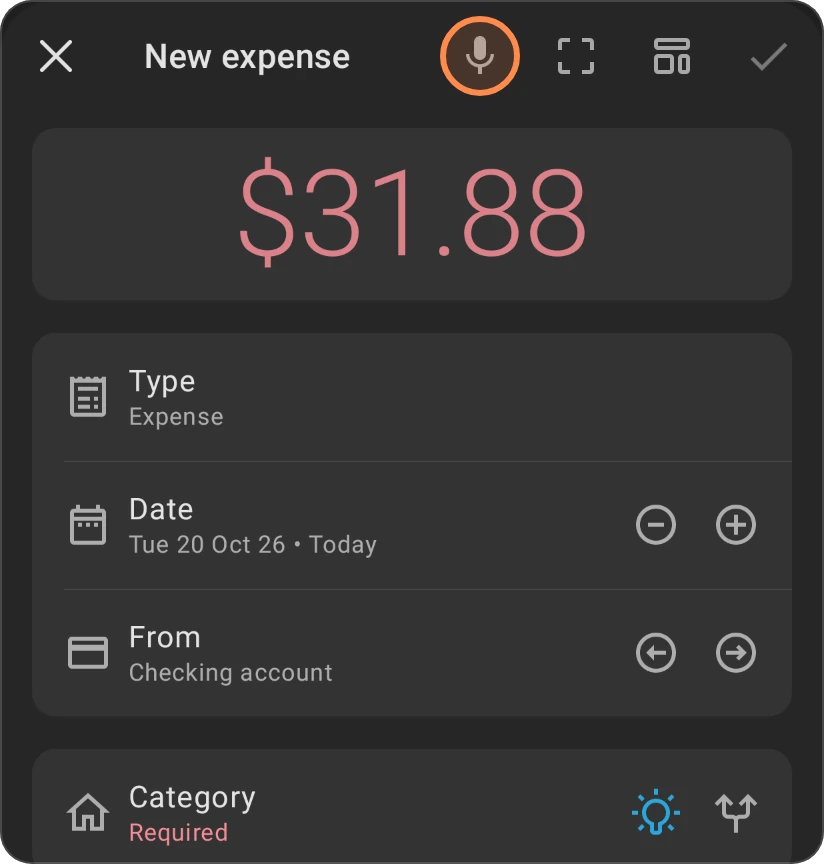
Say what you spent
-
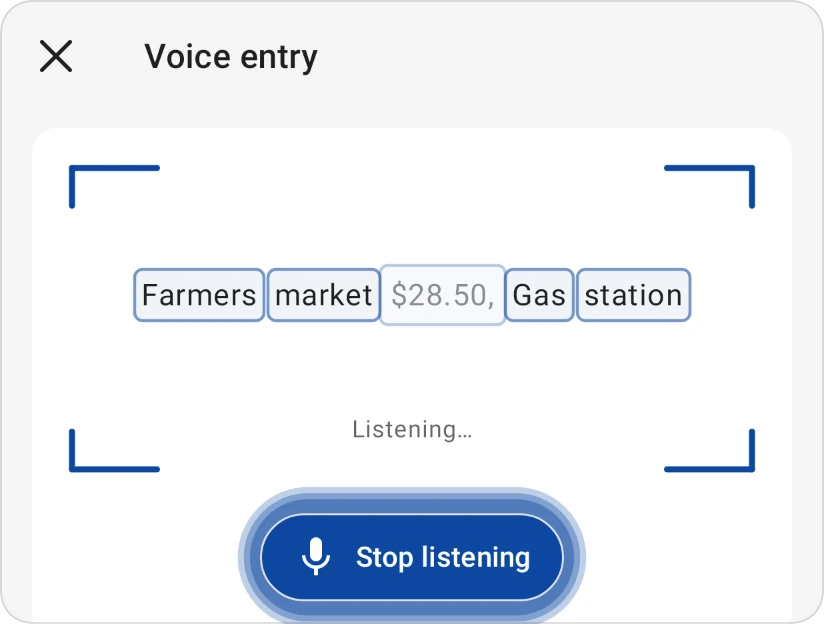
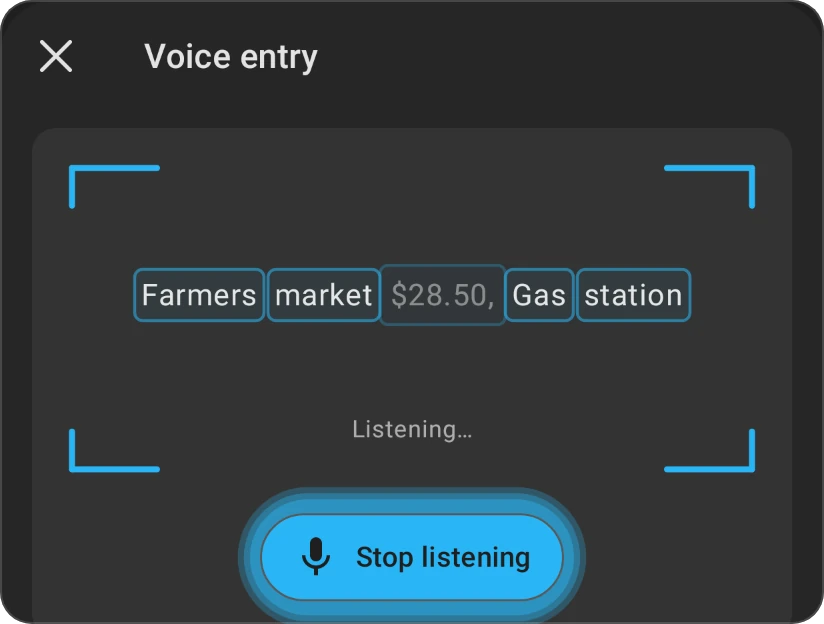
Voice entry starts listening as soon as it opens: it shows Listening… and the words as it hears them. The first time, the app asks for the microphone (on iPhone, iPad and Mac also for speech recognition): allow it. In Safari on the web, you may need to tap Start listening first.
-
Say an amount and what it was for, like "Lunch 12". You can add a day ("yesterday"), an account ("on Visa"), and several items in one go, like "Coffee 4.50 and lunch 12". Income and transfers between your accounts work too.
-
Stop talking. When you go quiet, voice entry stops listening by itself (or tap Stop listening) and shows Understanding… while it reads what you said.
-
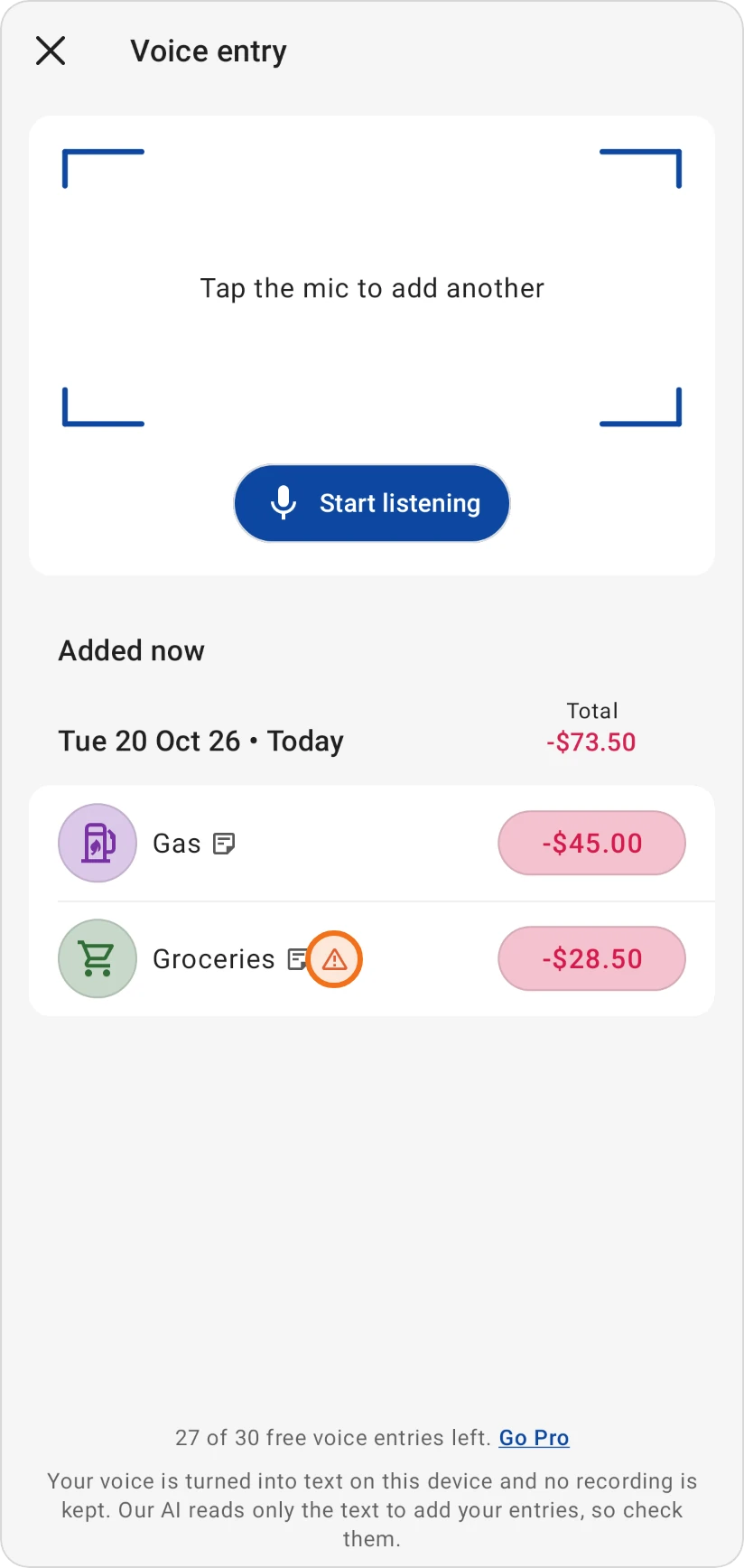
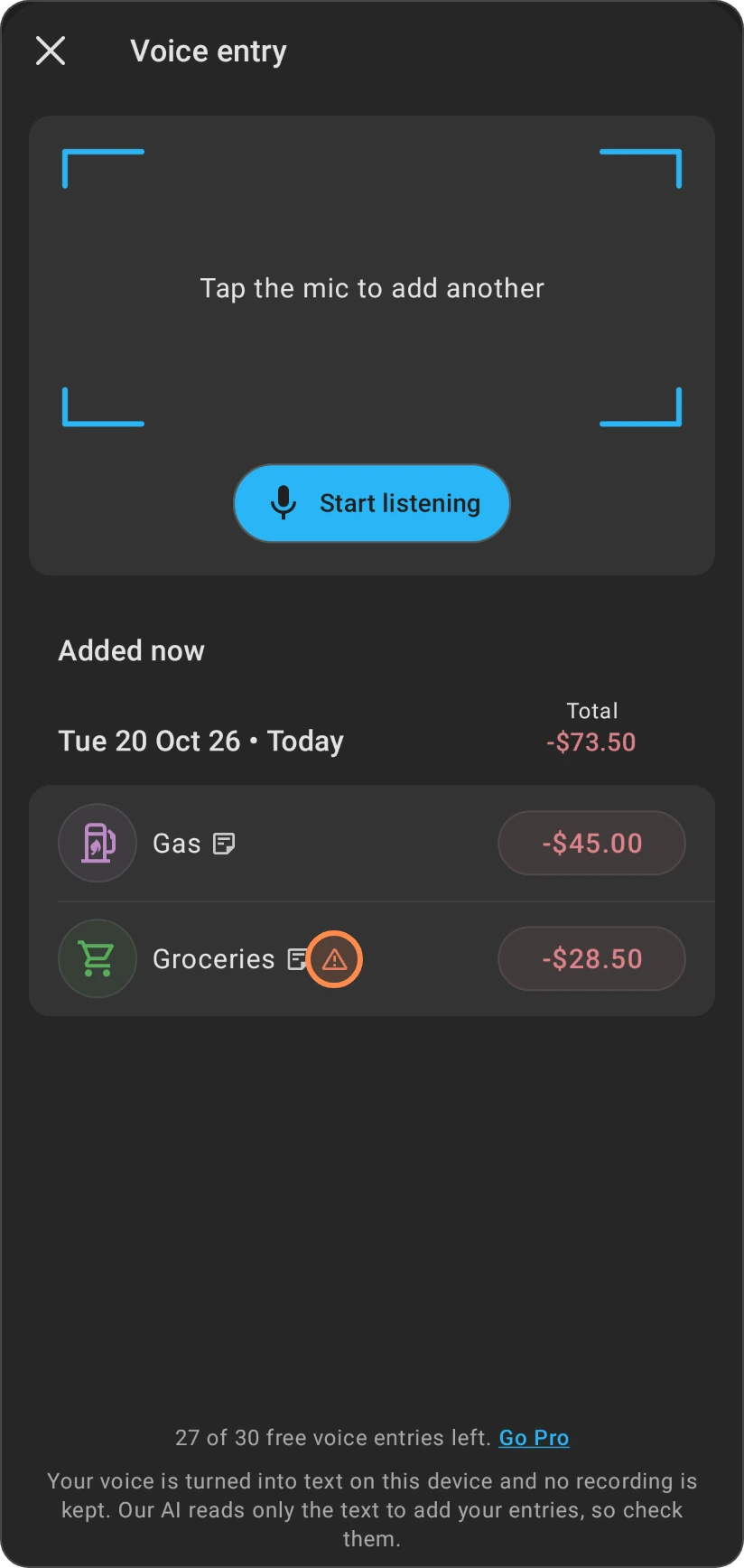
Each item is added at once and appears under Added now. To add more, tap Start listening again ("Tap the mic to add another").
Voice entry matches the names you say to the accounts and categories in your budget. An item that names no account goes to your default account (or, without one, your first open account).
Check and fix your entries
Added now lists what you added on this visit, by day with each day's total, like the app's other transaction lists.
-
A warning mark after an entry's name means voice entry saved its best guess but wasn't sure about the category or the account. Screen readers read it as Check category or Check account. Tap the entry to check it.
-
Edit: tap an entry (or swipe it to the right) to open it in the transaction form, then save your changes.
-
Delete: swipe an entry to the left. The app says "Entry deleted": tap Undo to bring it back.
Sometimes an item can't be added, for example when it names a category or account your budget doesn't have, or the save fails. It isn't lost: it's listed above Added now, under a title such as 1 not added. Tap the Try again icon at the end of that title to add them all again, or tap an item to fill it in by hand ("Tap an item to fill it in by hand.").
When it doesn't catch you
- Didn't catch an entry: voice entry heard you but found nothing to add. Say an amount and what it was for, like "Lunch 12". Tap Try again, or Fill in by hand to open a new transaction with what you said in its notes.
- "Didn't hear anything. Tap the mic to try again."
- Microphone is off: "Allow the microphone to add entries by voice." Tap Try again to be asked again. If you said no for good, tap Open settings and allow the microphone there (on the web, allow it in your browser's site settings).
- Voice entry needs an internet connection to add your entries.
- On the web, voice entry needs a browser with speech recognition, such as Chrome, Edge or Safari. Firefox doesn't have it, so the mic isn't shown there.
What happens to your voice
Voice entry listens in the app's language. Your voice is turned into text by your device's or browser's speech service:
- Android: on phones with an on-device recognizer (Android 12 and later), the words stay on your phone. Otherwise the phone's default recognizer is used, usually Google's, which may send the audio to Google.
- iPhone, iPad and Mac: Apple's speech recognition. When it can recognise your language on the device, the audio never leaves it; otherwise Apple's servers recognise it.
- Web: your browser's speech service, which runs on a server (Google's in Chrome, Apple's in Safari).
Only the text is sent to Beyond Budget, with the names of your accounts and categories, so our AI can turn it into entries. When your voice is turned into text on your device, no recording is kept. The note at the bottom of the voice entry screen says whether your voice was turned into text on your device.
Free and Pro
On the free plan, each budget can add 30 entries by voice. Each item added counts as one entry, so a sentence with three items uses three. The bottom of the screen shows how many are left, for example "27 of 30 free voice entries left", with Go Pro. Once they're used up, the app offers Pro instead of listening. On Pro, voice entries are unlimited. See Does the app offer a free plan?